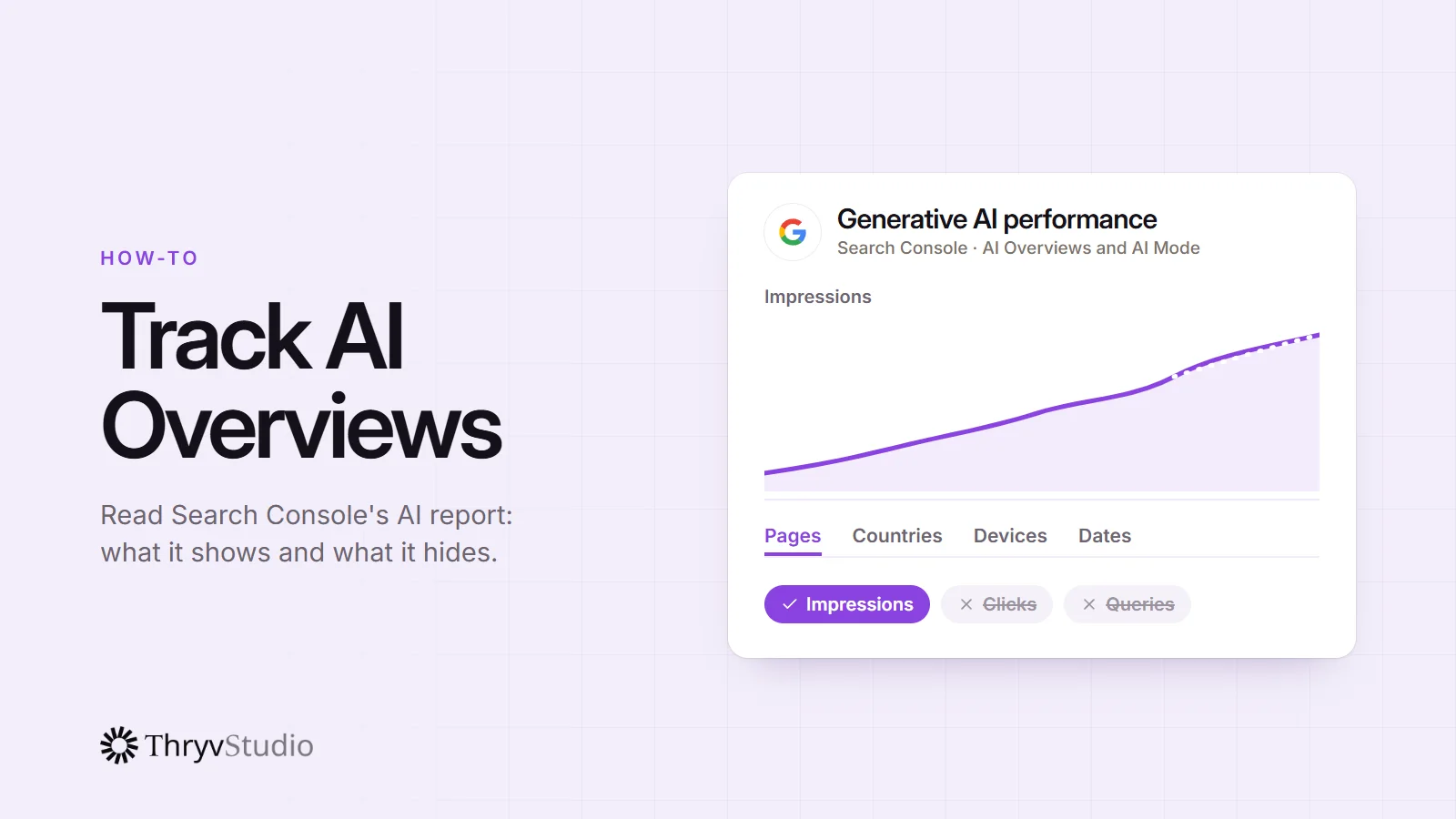
Google Search Console has a generative AI performance report that shows how often your pages appear in AI Overviews and AI Mode. It reports impressions by page, country, device and date. It does not show clicks, click-through rate, position or the searches behind each impression. Google launched it on June 3, 2026 for a subset of sites and rolled it out to all websites worldwide by August 31, 2026. Use it to see which pages AI features show, then pair it with the main Performance report and your analytics to judge what that exposure is worth.
What is the generative AI performance report?
The generative AI performance report is a report in Google Search Console that counts how often links to your site appear in Google's generative AI features. On Search, that means AI Overviews and AI Mode. A separate version covers generative AI features in Google Discover.
Google announced the reports on June 3, 2026 in a post titled Introducing Search Generative AI performance reports in Search Console. They first went to a subset of websites for testing. A note added to that post says that as of August 31, 2026, the reports are available to all websites worldwide.
Before this report existed, site owners had no way to separate AI features from the rest of their data. AI Overview and AI Mode traffic was already counted in the regular Performance report, mixed in with blue links. It still is. The new report is an extra, dedicated view of the AI part, not a replacement.
If you're new to the features themselves: an AI Overview is the AI-written summary that appears at the top of some Google results, with links to the pages it drew on. AI Mode is a separate, conversational search mode that breaks a question into subtopics, searches each one and writes a longer answer with links. Google explains how both work in AI features and your website.
What the report shows, and what it leaves out
The report measures one thing: impressions. Google's help article for the report defines an impression as each time a link to your site was shown to a user in a generative AI feature on Google Search.
You can break impressions down four ways and filter by search type:
| You can see | What it tells you |
|---|---|
| Impressions | How often links to your site appeared in AI Overviews and AI Mode |
| Pages | Which URLs appeared, grouped by canonical URL |
| Countries | Where the searches came from |
| Devices | Desktop, tablet or mobile |
| Dates | Trends by hour, day, week or month, in Pacific Time |
| Search type | Text searches, or multimodal searches such as Google Lens and Circle to Search |
What is missing matters just as much:
| You can't see | Where to look instead |
|---|---|
| Clicks from AI features | Counted in the main Performance report, mixed with other web results |
| Click-through rate | Not available for AI features on their own |
| Position | Not shown in this report |
| Queries (the searches) | Not shown; use manual checks or an AI visibility tracker |
| ChatGPT, Perplexity and other assistants | Not Google products; use referral data in your analytics |
| Search Labs experiments | Excluded from Search Console entirely |
Google says it is "continuing to work with website owners" on which data would help most, "such as adding additional metrics over time". For now, plan around impressions only.
How AI Overview and AI Mode data is counted
Google publishes the rules for impressions, clicks and position across Search Console. The rules for AI features are short, and they explain several things that look odd in your data.
AI Overviews
- Click: a click on a link to an external page inside the AI Overview counts as a click.
- Impression: standard rules apply. A link has to be shown to the user.
- Position: the whole AI Overview takes one position on the results page, and every link inside it gets that same position.
AI Mode
- Click: a click on a link to an external page counts as a click.
- Impression: standard rules apply.
- Position: worked out the same way as on a normal results page.
- Follow-up questions: each follow-up is treated as a new search, with its own impressions, clicks and positions.
Two practical consequences. First, because every link in an AI Overview shares one position, a page cited in an AI Overview at the top of the page can show a very high average position in the main Performance report, even if its own blue link ranks lower. Second, a long AI Mode conversation can produce impressions across several "searches", which inflates impression counts compared with a single classic search.
In the generative AI report's chart, data is grouped by property. If two links from your site appear in the same AI feature, the chart counts one impression. In the table, grouping by page counts each page separately. That is why the chart total and the table total sometimes differ.
Search report vs Discover report
There are two generative AI reports, and they count differently.
| Search report | Discover report | |
|---|---|---|
| Features covered | AI Overviews and AI Mode | Generative AI features in Discover |
| Dimensions | Pages, countries, devices, dates | Pages, countries, dates |
| Search type filter | Text and multimodal | Not applicable |
| How impressions are grouped | By property in the chart, by page in the table | Always by page; each result counts separately |
| Page reported | Final URL after redirects, usually the canonical | The canonical source page, not the landing page |
The Discover version's help article adds that a Discover link only counts once it has been scrolled into view, and only once per result per session.
How to open the report
- Sign in to Search Console and pick your property. A domain property gives the fullest picture because it covers every subdomain and protocol.
- Open the generative AI performance report for Search. It sits with the other performance reports. The Discover version is listed separately. Google's help article also links straight to it.
- Set the date range. The report follows the same date rules as the main Performance report. The newest data is preliminary and shown as a dotted line, because it can still change for a few hours.
- Pick a dimension tab: Pages, Countries, Dates or Devices.
- Filter by search type if you want to separate typed searches from image-based ones.
- Export. The export button downloads both the chart and the table. Values shown as "~" or "-" in the report become zeros in the file.
Not seeing the report?
Google gives two reasons. The usual one is that your site hasn't had enough impressions in AI features yet. The other is that someone has excluded your site from Search generative AI features in Search Console's settings. If that happened, your pages are no longer eligible to appear in AI Overviews or AI Mode, so there is nothing to report. Our guide on whether to opt out of AI Overviews explains that setting.
How to track AI Overviews: a five-step method
The report gives you impressions by page. The value comes from setting those numbers next to your other data. Here is the method we use.
Step 1: List the pages AI features show
Open the Pages tab, set a 3-month range and export the table. Sort by impressions. This is your list of pages Google already uses in AI Overviews and AI Mode. Most sites find the list is shorter and stranger than expected. Old how-to posts and glossary-style pages often appear more than service pages.
Step 2: Work out each page's AI exposure
For the same pages and dates, export impressions from the main Performance report, filtered to the Web search type. Both reports cover web search, and the Performance report already includes the AI impressions, so you can divide one by the other:
AI exposure = generative AI impressions ÷ total web impressions
A page with 40% AI exposure appears in AI features for a large share of the searches that show it at all. A page at 2% is mostly a classic blue-link page. This is a rough guide, not an exact share. The two reports group some data differently, so treat it as a ranking of your pages, not a precise percentage.
Step 3: Compare exposure with clicks
Now look at each page's clicks over the same period in the Performance report, and sort your pages into four groups:
| Clicks steady or rising | Clicks falling | |
|---|---|---|
| High AI exposure | AI features are working for you. Protect these pages: keep them accurate and up to date. | The AI answer may be satisfying people before they click. Give them a reason to visit: a tool, a price, a worked example, something a summary can't hold. |
| Low AI exposure | Classic search is doing the work. Check whether the queries trigger AI Overviews; if they do, you have room to be cited. | AI features probably aren't the cause. Look at rankings, competitors, seasonality and technical problems first. |
This one table stops the most common mistake we see: blaming AI Overviews for every drop in traffic. Without the exposure figure, you can't tell an AI effect from an ordinary ranking loss.
Step 4: Find the searches behind the impressions
The report doesn't show queries, so fill that gap by hand. For each high-exposure page, open the main Performance report, filter to that page and look at its top queries. Search the main ones yourself, signed out, and note whether an AI Overview appears and whether your page is cited in it. Repeat on mobile, where AI features often look different. Keep the list in a spreadsheet and recheck it monthly.
If you need this at scale, an AI visibility tracker can run the checks for you. Use one alongside Search Console, not instead of it: Search Console counts what actually happened to real users, and trackers sample what could happen.
Step 5: Connect it to visits and leads
Search Console stops at the click. To see what AI exposure is worth, open your analytics, look at organic landing pages and compare engagement and conversions for your high-exposure pages against the rest. Google's guidance says that clicks from results pages with AI Overviews tend to be "higher quality", with people more likely to spend time on the site. Check whether that holds for your pages rather than assuming it.
For assistants outside Google, such as ChatGPT and Perplexity, Search Console has nothing. Our guide to measuring AI visibility shows how to track AI referral traffic in Google Analytics 4 and build a fixed set of buyer questions to check each month.
Google AI Mode tracking: what's different
AI Mode impressions are in the same report as AI Overviews, and you can't currently split the two apart. Three things are worth knowing:
- Follow-ups multiply impressions. Each follow-up question counts as a new search, so a single conversation can create several impressions for the same page.
- Position works like a normal results page, unlike AI Overviews, where every link shares one position.
- AI Mode searches are often longer and more specific. If your page appears there, it is usually answering one narrow subtopic of a bigger question. Pages with clear, specific sections tend to suit that better than pages that cover everything loosely.
Common mistakes when reading the report
- Reading it as traffic. It counts impressions, not visits. A page can gain AI impressions and lose clicks at the same time.
- Adding the AI report to the Performance report. The AI impressions are already inside the Performance report. Adding them counts them twice.
- Comparing chart totals with table totals. The chart groups by property and the table by page. They will differ, and that's expected.
- Looking for redirected or duplicate URLs. Data is assigned to the canonical URL, so the page you expect may be listed under its canonical.
- Trusting today's numbers. The latest data is preliminary. Wait a day before reporting it.
- Exporting more than 1,000 rows. The usual Search Console row limits apply. For big sites, export by folder or use the Search Console API for the main report.
- Treating "~" as zero. It means "not available" in the report, even though the export writes it as zero.
Who should check this report first?
Any site that gets search traffic should look at it once. It matters most for:
- Content-led businesses whose blog or help pages bring in leads. These pages are the most likely to be summarized.
- Local service businesses that rank for "how much does…" and "how do I…" questions, where AI Overviews are common.
- Ecommerce stores with buying guides and comparison pages.
- Publishers, for whom impressions without clicks have a direct cost.
If the report shows your pages rarely appear, that isn't automatically good news. It can mean competitors are being cited for questions your customers ask. Our AI search readiness checker shows whether your pages give AI features what they need to cite you.
Frequently asked questions
Can Google Search Console show AI Overview clicks?
Not on their own. Clicks on links inside AI Overviews and AI Mode count as clicks in the main Performance report, but they are mixed with other web clicks. The generative AI report shows impressions only.
Does Search Console show AI Mode data?
Yes. The generative AI performance report for Search includes impressions from both AI Overviews and AI Mode. You can't currently separate the two.
What is the AI Overview feature in Google Search Console?
It is the generative AI performance report, launched in June 2026 and available to all sites worldwide since August 31, 2026. It shows how often your pages appear in AI Overviews and AI Mode, broken down by page, country, device and date.
Does the generative AI report show search queries?
No. It shows pages, countries, devices and dates. To find the searches behind the impressions, filter the main Performance report to a page and check its top queries by hand.
How do I track traffic from AI Overviews?
Use three sources together. The generative AI report shows which pages appear. The Performance report shows clicks and queries for those pages, combined with other web results. Your analytics shows what visitors from those pages did after they arrived.
What position does an AI Overview get in Search Console?
An AI Overview occupies a single position on the results page, and every link inside it is given that position. That is why pages cited in an AI Overview can show a better average position than their own blue link.
Why is my generative AI report empty?
Usually because your site hasn't had enough impressions in AI features yet. Check also that nobody has excluded the site under Settings, Search generative AI. Excluded sites can't appear in AI Overviews or AI Mode.